VS Code Extensions Beat Terminal-Based AI Agents for Everyday Coding
Discover why VS Code extensions like FutureX offer superior developer productivity through inline context, quick-fixes, and project awareness compared to terminal CLI AI agents.
- VS Code Extensions
- AI Coding Agent
- Developer Productivity
- Inline AI Assistant
- Terminal CLI vs IDE
- FutureX
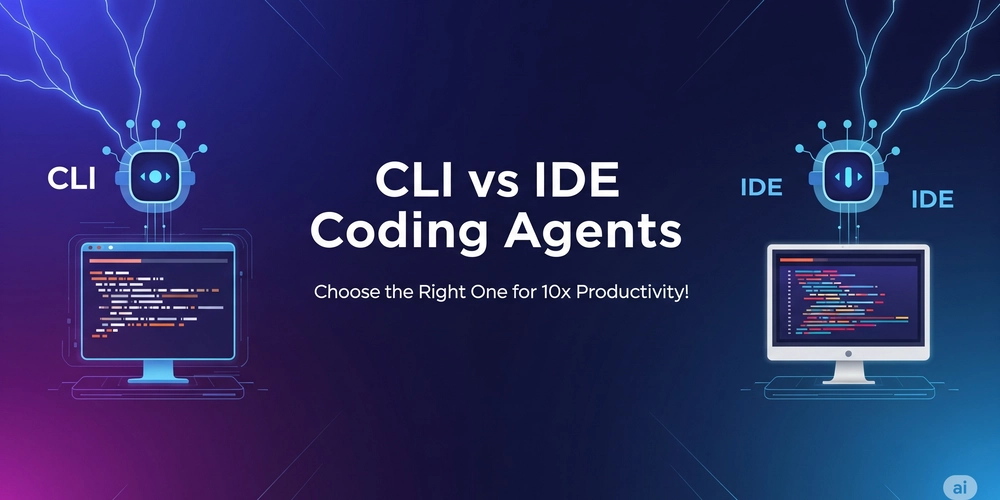
The debate between VS Code extensions and terminal-based AI agents is heating up as developers seek the best way to integrate AI into their workflow. While terminal CLIs have their place, a growing number of developers are finding that inline AI assistants—like FutureX for FIM—deliver a far more seamless experience for day-to-day coding. In this article, we'll dissect why VS Code extensions win over terminal CLI AI agents, focusing on concrete advantages in context, speed, and iteration.
Inline Context: Where Extensions Shine#
The Problem with Terminal CLIs#
Terminal-based AI agents operate outside your editor. You copy code into a terminal, paste it as context, receive a response, and then manually apply changes back to your file. Each step breaks your flow. The terminal has no awareness of your cursor position, the surrounding function, or the imports at the top of your file unless you explicitly include them. This leads to repeated context copying and wasted keystrokes.
How VS Code Extensions Keep You in the Zone#
VS Code extensions like FutureX understand your codebase in real time. They see the file you're editing, the selected text, and your cursor position. When you trigger an AI suggestion, the extension can generate diffs that apply directly to your file. No copy-paste, no context loss. For example, refactoring a function is a single command: select the function, invoke FutureX, and receive an inline diff.
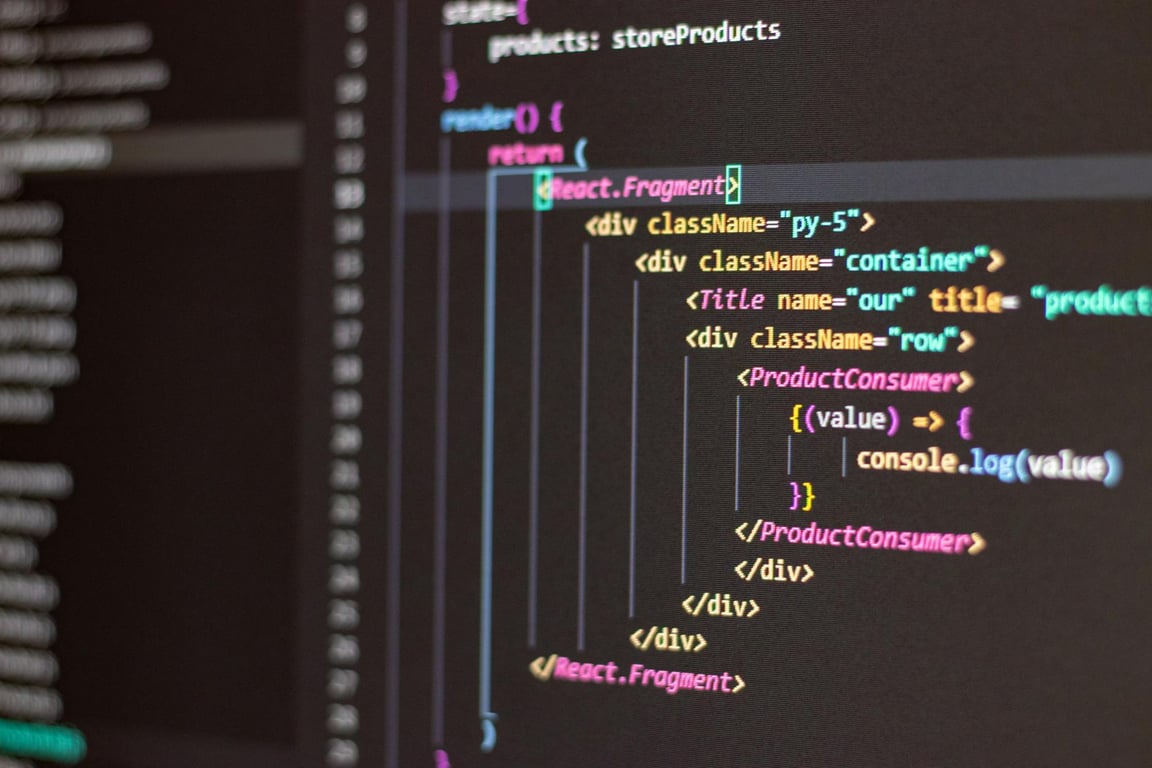
Source: inventivehq.com
Research shows that context switches cost 23 minutes of lost productivity on average. By eliminating the need to switch windows and re-explain your code, VS Code extensions drastically reduce this overhead. The inline AI assistant becomes an extension of your editor, not a separate tool.
Quick-Fixes: From Suggestion to Application in One Click#
Terminal CLI Iterations Are Slow#
When using a terminal CLI, each AI-generated suggestion is a static block of text. You must read it, understand it, manually edit your file to incorporate any changes, and then test. If the suggestion is wrong, you repeat the process: copy the new error, paste it into the terminal, get another block, and apply again. This trial-and-error loop is tedious.
VS Code Extensions Provide Interactive Quick-Fixes#
FutureX brings quick-fix capabilities directly into VS Code's problem pane. When an error is detected—say a missing import or a type mismatch—the extension offers a lightbulb action. Clicking it applies the fix in place. No need to describe the problem; the AI already has full context from your workspace.
Source: dev.to
For example, if you have a TypeScript error because you passed the wrong argument type, FutureX can suggest the correct type change. A single click inserts the fix. This tight feedback loop is impossible to achieve with a terminal-based agent that lacks editor integration. Developer productivity increases because you spend less time gluing AI output back into your code.
Project Awareness: Beyond the Current File#
Terminal Agents Lack Context#
Terminal AI agents are stateless unless you manually provide a project summary or retrieve file contents. They don't know about your project structure, your coding conventions, or your dependencies. Every query is a fresh start. This often leads to generic or incorrect suggestions that don't align with your codebase's patterns.
VS Code Extensions Understand Your Workspace#
FutureX analyzes your entire VS Code workspace—open files, language server diagnostics, folder structure, and even git history. This project awareness means the AI can suggest changes that respect your existing architecture. For instance, if you're working on a React app and need to add a new component, FutureX can generate it using your established import style and file naming convention.
A terminal CLI would need you to manually describe these conventions every time, which is impractical. The inline AI assistant in VS Code significantly reduces the cognitive load of constant context-switching and re-explanation.
Fewer Context Switches: The Developer Productivity Advantage#
The Cost of Switching#
Every time you leave your editor to interact with a terminal CLI, you incur a context switch. You shift from writing code to reading terminal output, then back. Studies show that even brief interruptions can take 23 minutes to recover from. Over a day, these switches add up to hours of lost focus.
Extensions Keep Everything in One Place#
With VS Code extensions, you never leave your editor. The AI is always visible in a side panel, an inline ghost text, or a quick-fix action. You stay in the same window, same file, same mental model. FutureX even offers inline completions that appear as you type, reducing the need to explicitly ask for help. This seamless integration directly boosts developer productivity by preserving flow state.
Moreover, many VS Code extensions can run automated tasks like linting, formatting, or running tests in the background. A terminal CLI requires you to manually execute these steps. The extension can also pipe AI-generated changes into your git diff for quick review. The result: a tighter loop of code, feedback, and improvement.
Real-World Workflow: A Concrete Example#
Let's compare a typical debugging session.
Terminal CLI approach:
- Notice a bug in your code.
- Copy the error message and relevant code block.
- Paste into terminal, ask the AI to explain and fix.
- Receive a large block of code with explanation.
- Manually edit your file (may need multiple tabs).
- Run tests. Bug persists? Go back to step 2.
VS Code extension approach (FutureX):
- Hover over the error in VS Code; FutureX shows a short explanation inline.
- Click "Fix with FutureX". The AI suggests an inline diff.
- Apply the diff with one click. The change is immediately visible.
- Run tests or debug directly from the editor.
The difference is night and day. The inline AI assistant eliminates context switches, manual copying, and repeated explanations. This is why VS Code extensions are the clear winner for day-to-day coding.
Conclusion#
While terminal-based AI agents have their uses—headless automation, CI/CD pipelines, or remote servers—they fall short for interactive development. VS Code extensions like FutureX excel because they provide inline context, quick-fixes, and project awareness that terminal CLIs simply cannot match. The result is fewer context switches, faster iteration, and genuinely higher developer productivity. If you're still jumping between your terminal and your editor, it's time to try an inline AI assistant directly in VS Code.
FIM's FutureX is built specifically for this workflow, integrating deeply with your editor to become a true coding partner. Give it a try and feel the difference.
Related reading
The Rise of Free AI Coding Agents: How FutureX Challenges Codex and Copilot
FutureX is redefining the landscape of AI-assisted development by offering a free, powerful alternative to paid giants like Codex and GitHub Copilot, especially for the growing vibe coding community.
Free AI Coding Agent3 min read

FutureX for Startups: Build Your MVP in Days Without Sacrificing Architecture
Learn how startup founders and solo developers can use FutureX to build an MVP quickly while maintaining a clean, scalable architecture.
FutureX4 min read
From CLI to Context: Why VS Code Extensions Outshine CLI Agents
VS Code extensions provide the context-rich, multi-step environment that CLI agents lack, making them the natural home for modern agentic AI workflows.
agentic AI6 min read